Create a Connection
A connection maps a spreadsheet to an API URL of the form https://api.sheetbest.com/sheets/<id>. There are three ways to create one:
- From a Google Sheets URL (the sheet must be shared by link).
- From a Google Drive folder — every sheet in the folder is exposed.
- By uploading a spreadsheet file to Sheet Best.
A fourth option, Connect with Drive (beta), connects a private sheet without making it public.
Open the Sheet Best dashboard and click + CONNECTION to start.
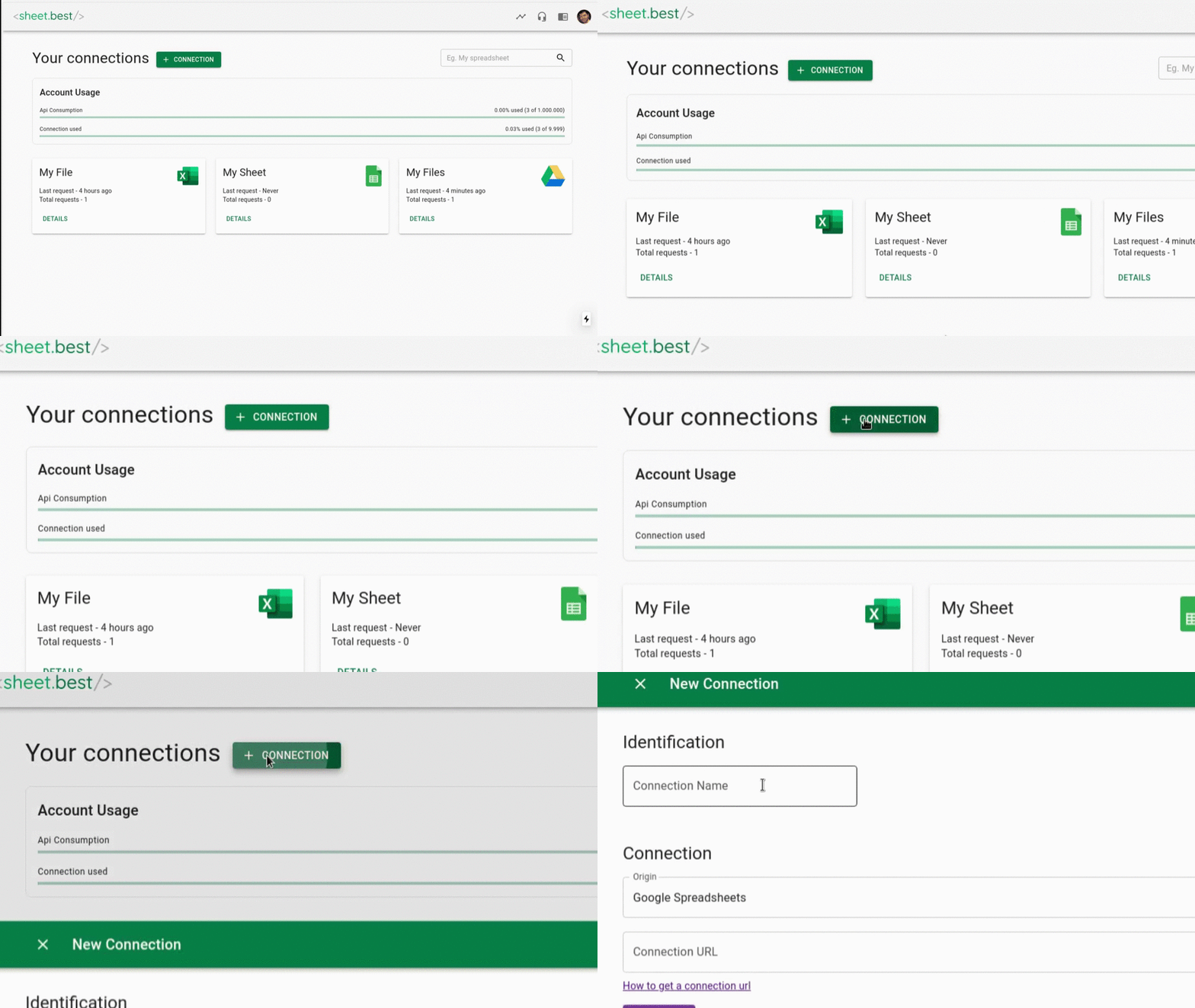
From a Google Sheets URL
-
In Google Sheets, click Share and grant Anyone with the link → Viewer (or Editor if you need writes). See Prepare your Sheet for screenshots.
-
Copy the sheet URL from the browser address bar.
-
In the Sheet Best dashboard, name the connection, choose Google Sheets as the Connection Origin, paste the URL, and click CONNECT.
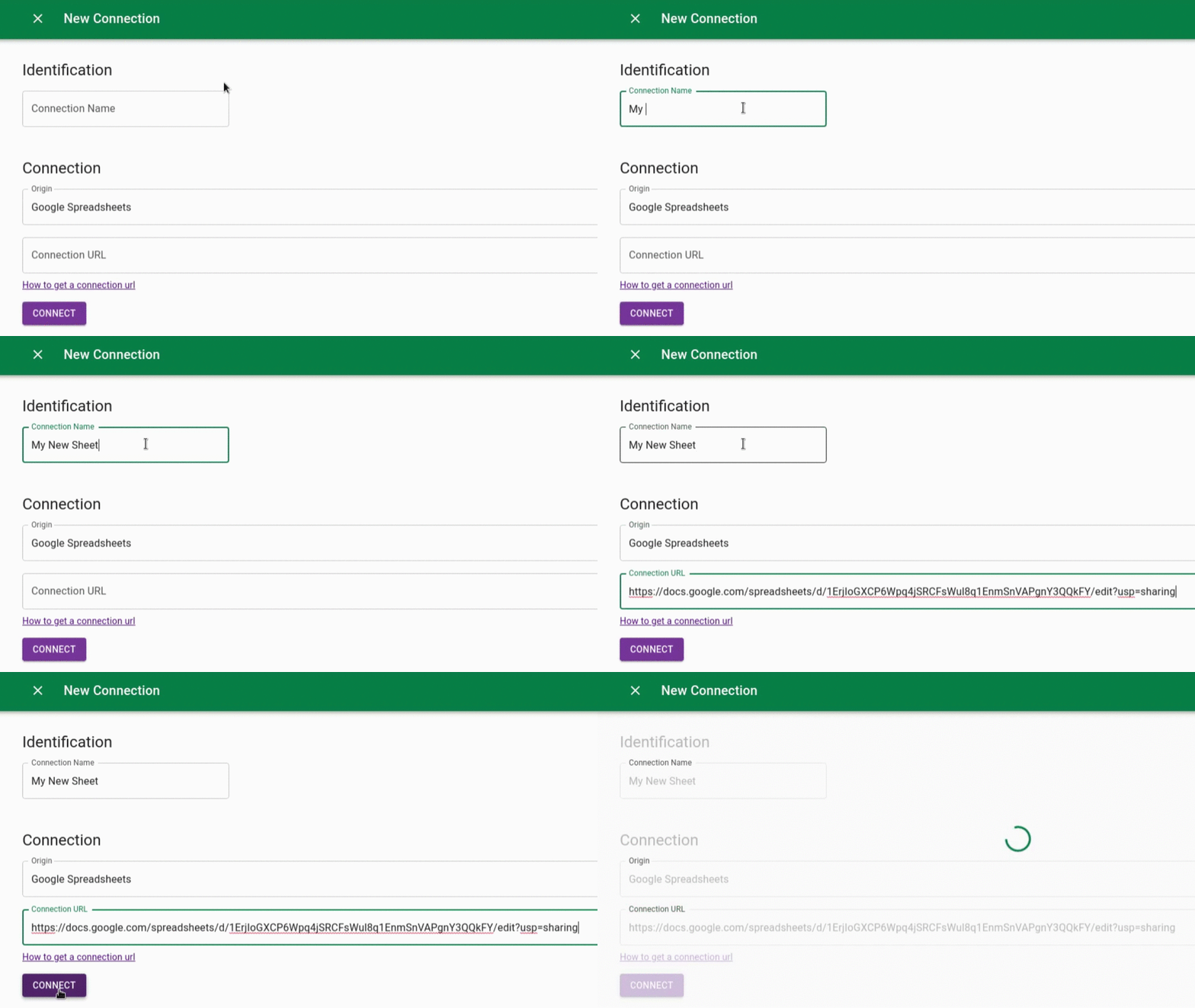
-
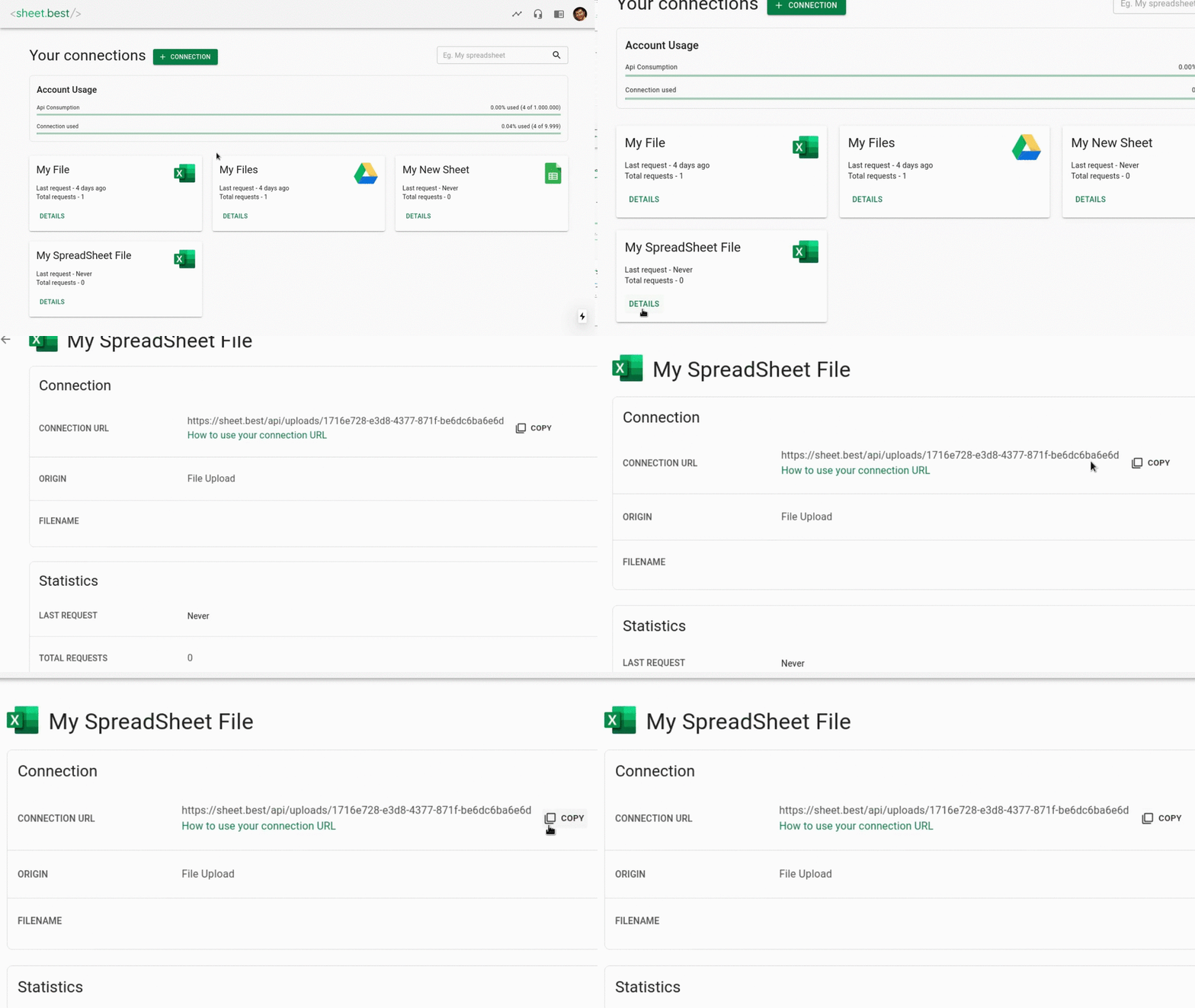
Click DETAILS on the new connection and copy the Connection URL.
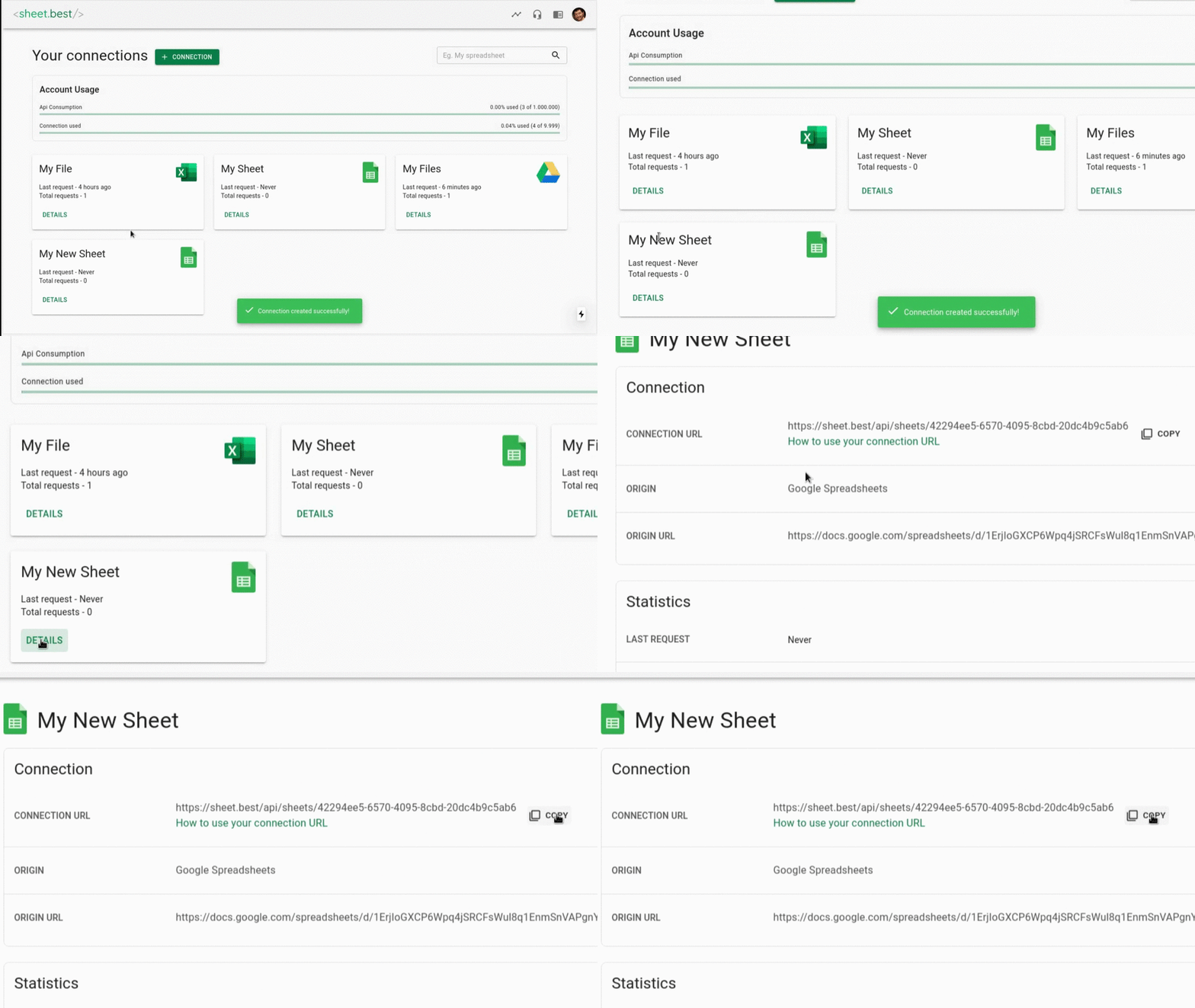
From a Google Drive folder
Use this when you want every sheet in a folder to be exposed at once.
-
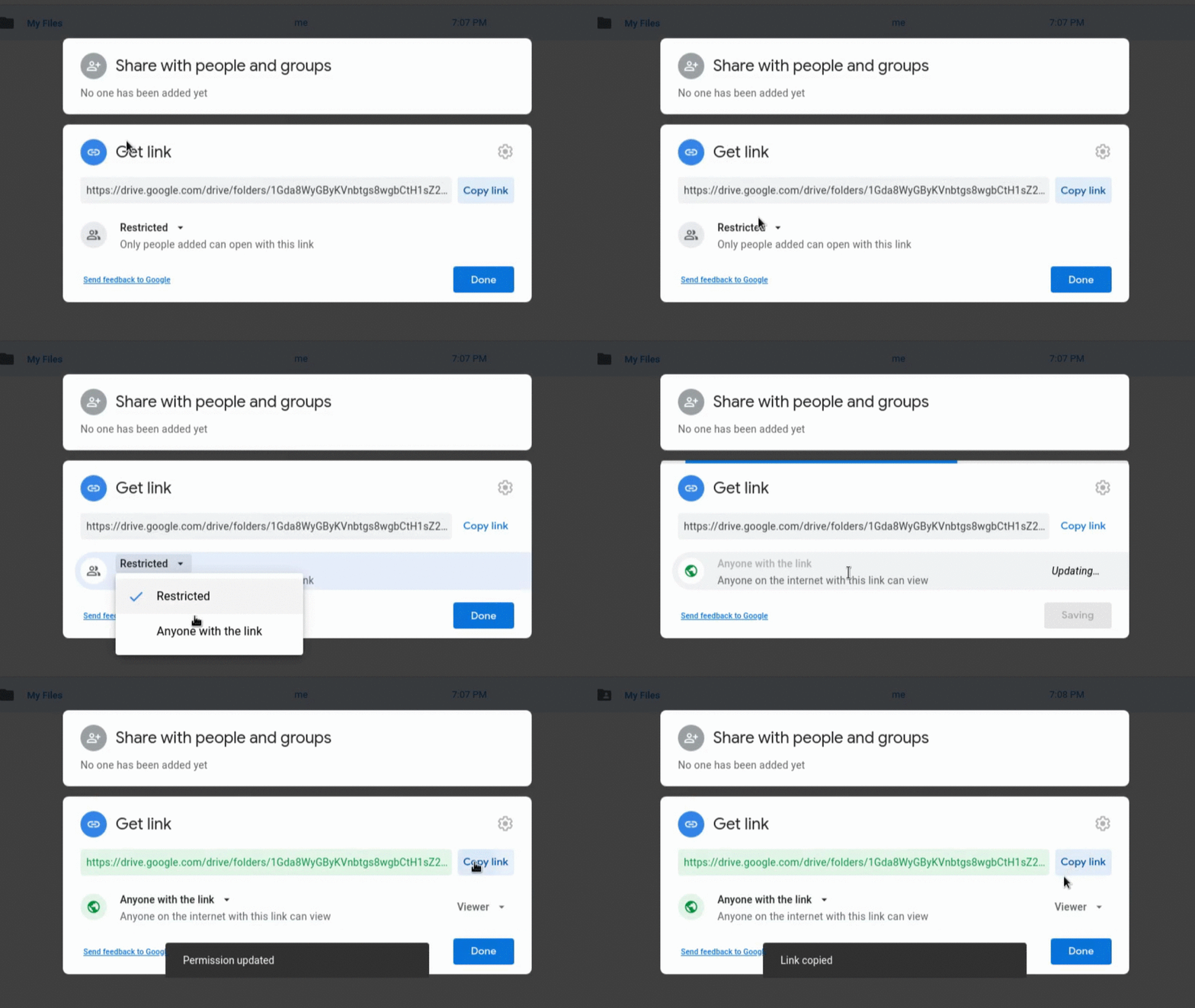
In Google Drive, right-click the folder and select Get Link.
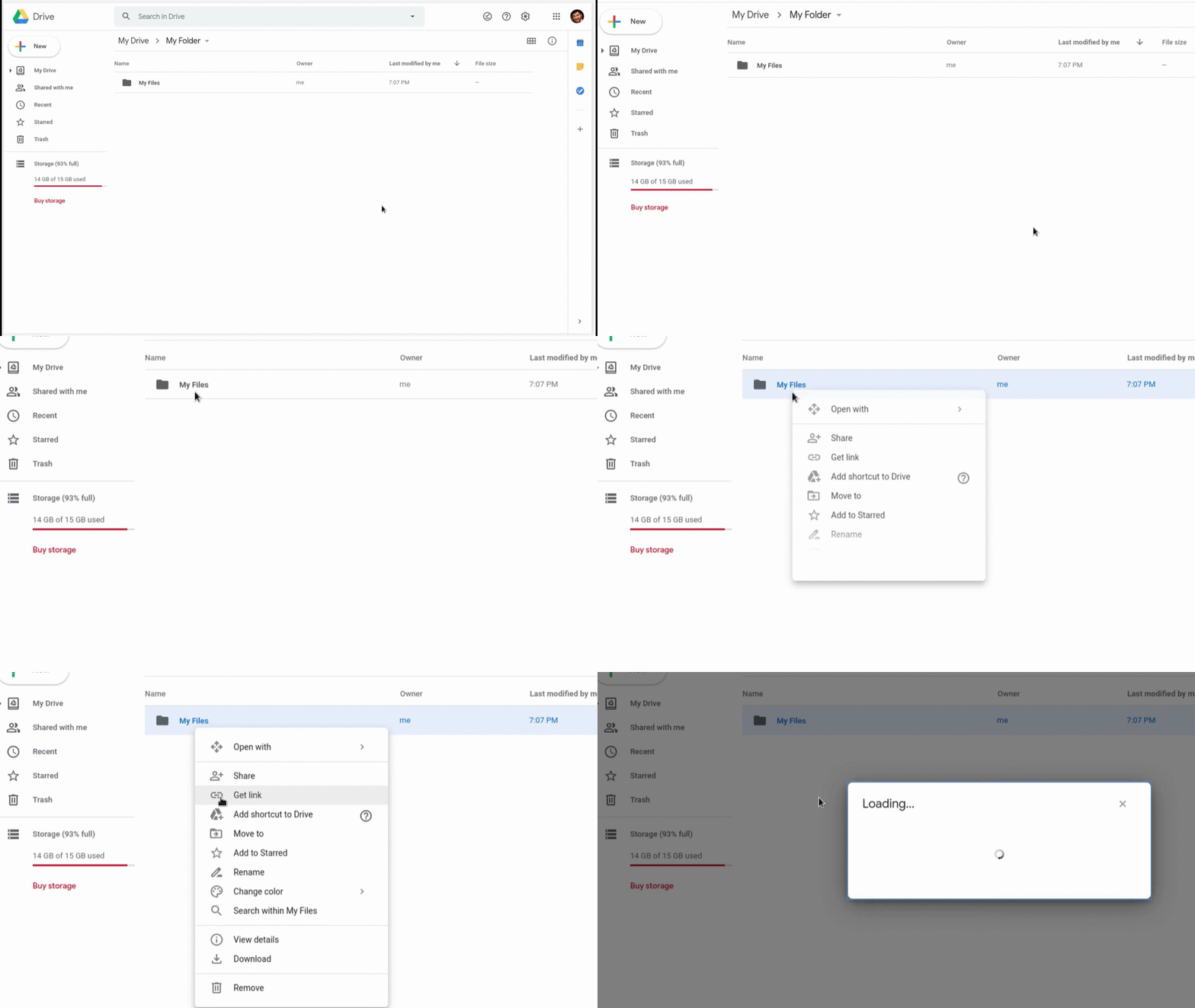
-
Set the folder permission to Anyone with the link and copy the link.
-
In the dashboard, choose Google Drive Folder as the Connection Origin, paste the folder link, and click CONNECT.
By uploading a file
Use this for one-off spreadsheets that don't live in Google Drive.
-
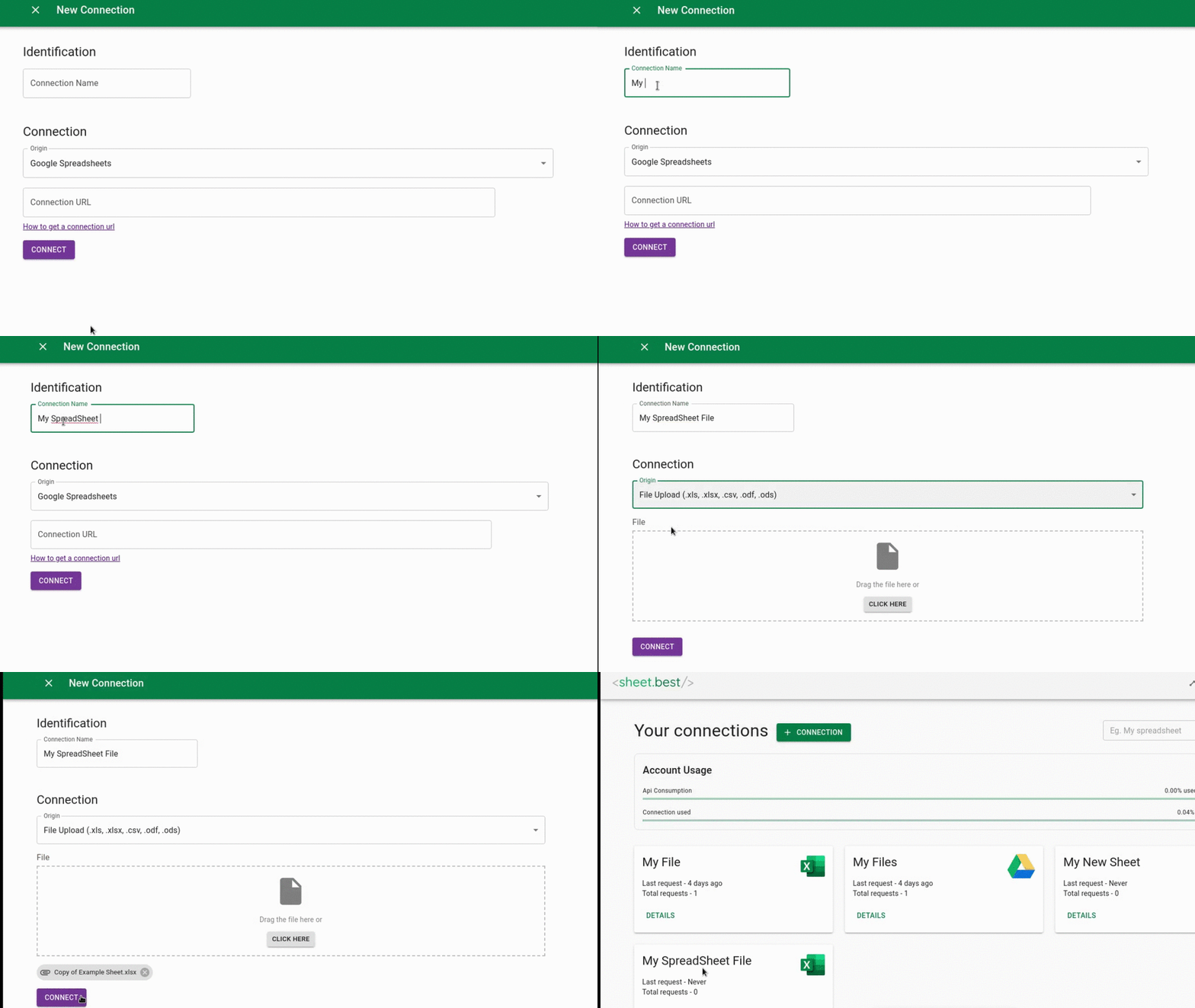
In the dashboard, choose File Upload as the Connection Origin.
-
Pick the spreadsheet file from your computer in the File field, then click CONNECT.
-
Open DETAILS and copy the Connection URL.
Test your connection
- cURL
- JavaScript
- Python
curl https://api.sheetbest.com/sheets/YOUR_SHEET_ID
fetch('https://api.sheetbest.com/sheets/YOUR_SHEET_ID')
  .then(r => r.json())
  .then(console.log);
import requests

print(requests.get('https://api.sheetbest.com/sheets/YOUR_SHEET_ID').json())
You should get back an array of objects, one per row.
Permissions and writes
Whether write methods (POST, PUT, PATCH, DELETE) work depends on the underlying spreadsheet's access:
- Google Sheets URL: needs Editor sharing.
- Google Drive folder: needs Editor access on the folder.
- File upload and Connect with Drive: writable by default once the connection exists.
If a write call fails because the underlying sheet isn't editable, the API returns the write_error code. See Error Codes.
Protect the API with a key
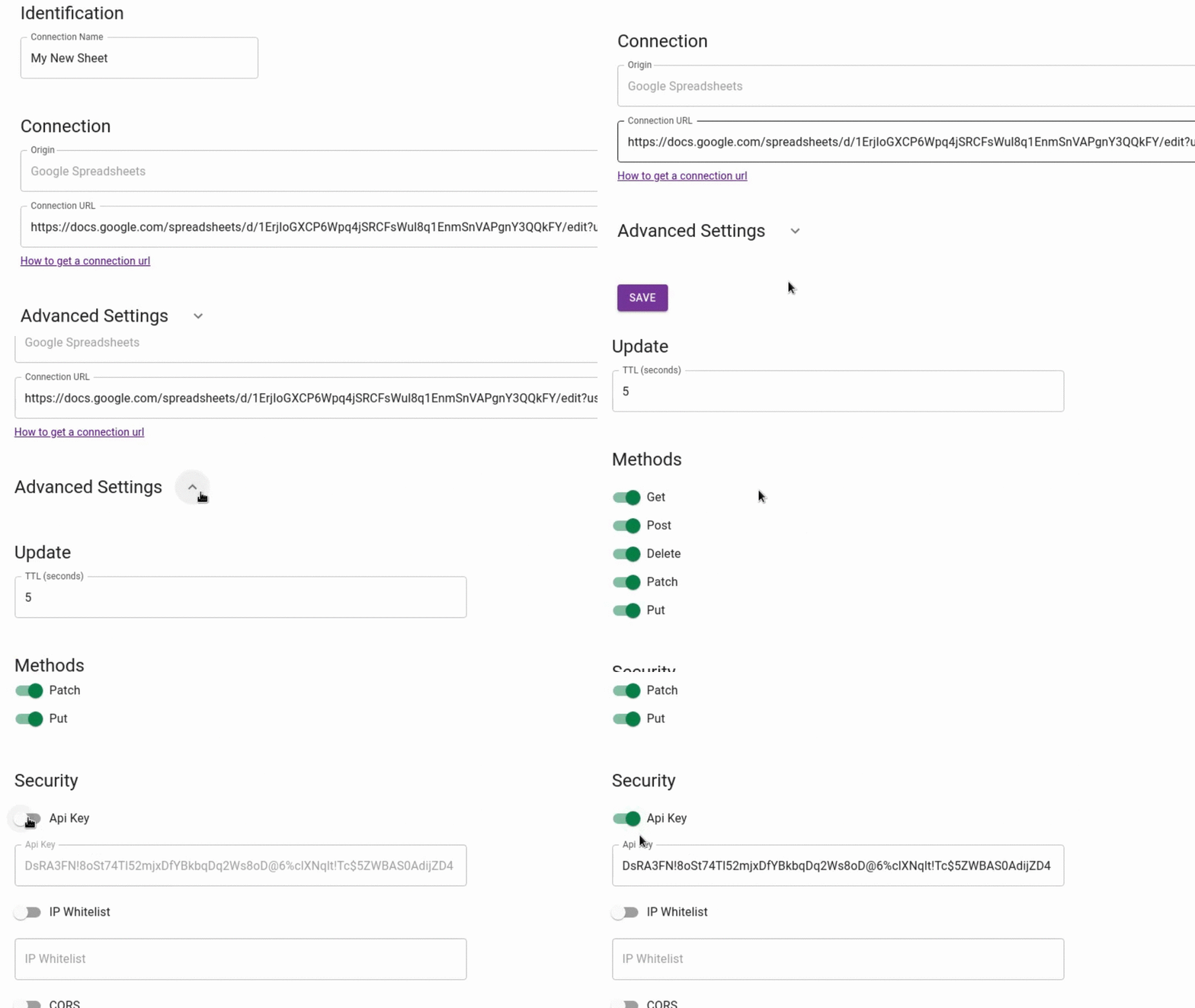
By default, the connection URL is reachable by anyone who has it. To require an X-Api-Key header, click Edit on the connection, open Advanced Settings, and enable the API key.

Full details in Authentication.