Prepare your Sheet
Sheet Best reads any Google Sheet (or uploaded spreadsheet) where the first row contains column headers. Each row below the header becomes a JSON object keyed by those headers.
Headers and rows
- The first row is the header row. Its values become the JSON keys.
- Each row below becomes one object in the response array.
- Cells can hold text, numbers, dates, booleans, or be empty. Sheet Best will return them as-is (typically as strings).
- Empty cells come back as empty strings (
"").
This sheet:
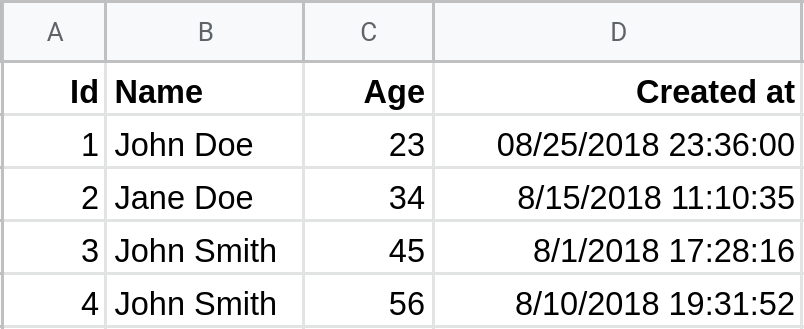
Returns:
[
  { "Id": "1", "Name": "John Doe",   "Age": "23", "Created at": "8/25/2018 23:36:00" },
  { "Id": "2", "Name": "Jane Doe",   "Age": "34", "Created at": "8/15/2018 11:10:35" },
  { "Id": "3", "Name": "John Smith", "Age": "45", "Created at": "8/1/2018 17:28:16"  },
  { "Id": "4", "Name": "Jane Smith", "Age": "56", "Created at": "8/10/2018 19:31:52" }
]
Tabs
By default, Sheet Best operates on the first tab of the sheet. Other tabs are addressable with /tabs/<TabName> — see Working with Tabs.
Share the sheet
For Sheet Best to read your sheet, it needs link access.
-
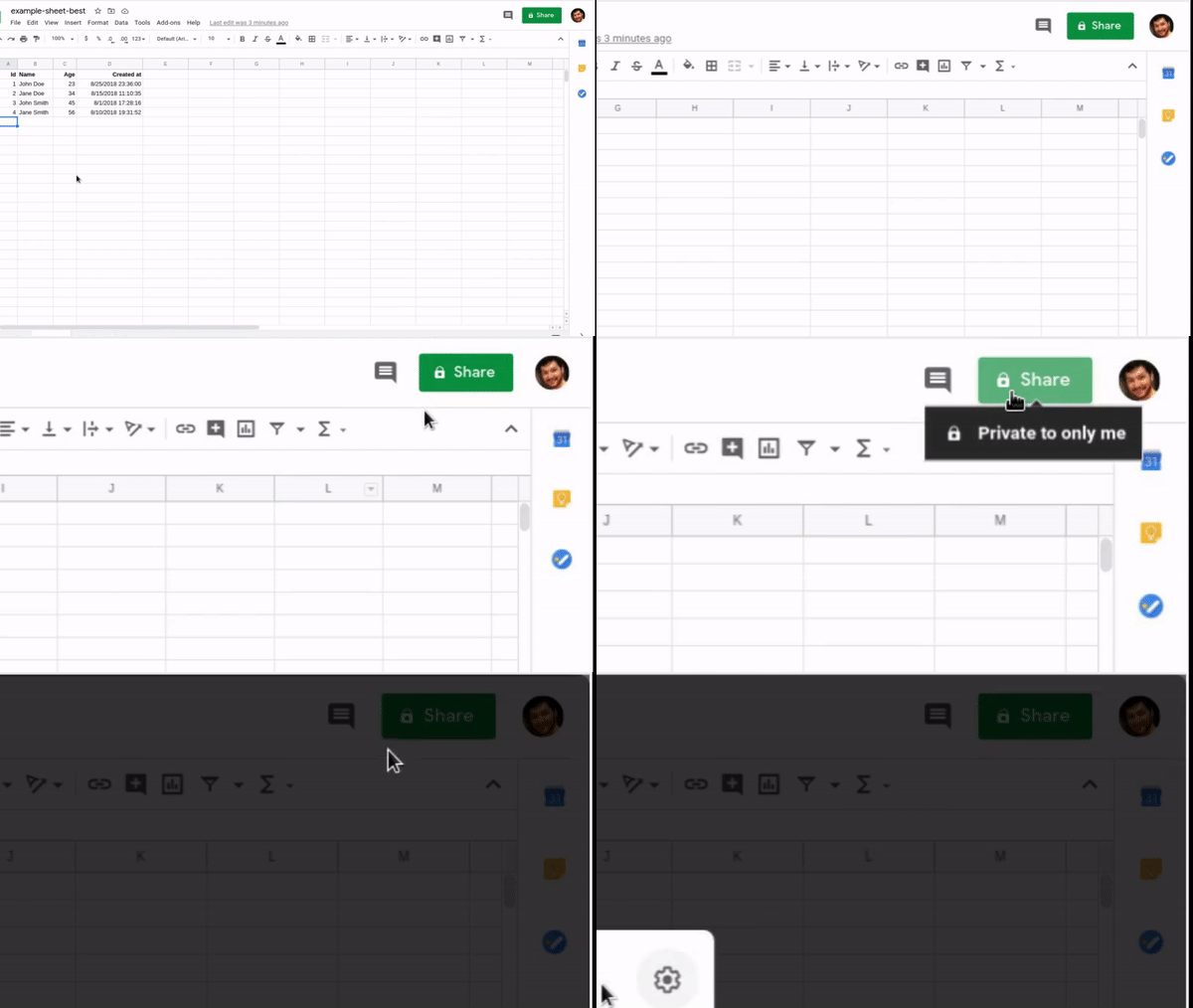
Open the sheet and click Share.
-
Set General access to Anyone with the link → Viewer.
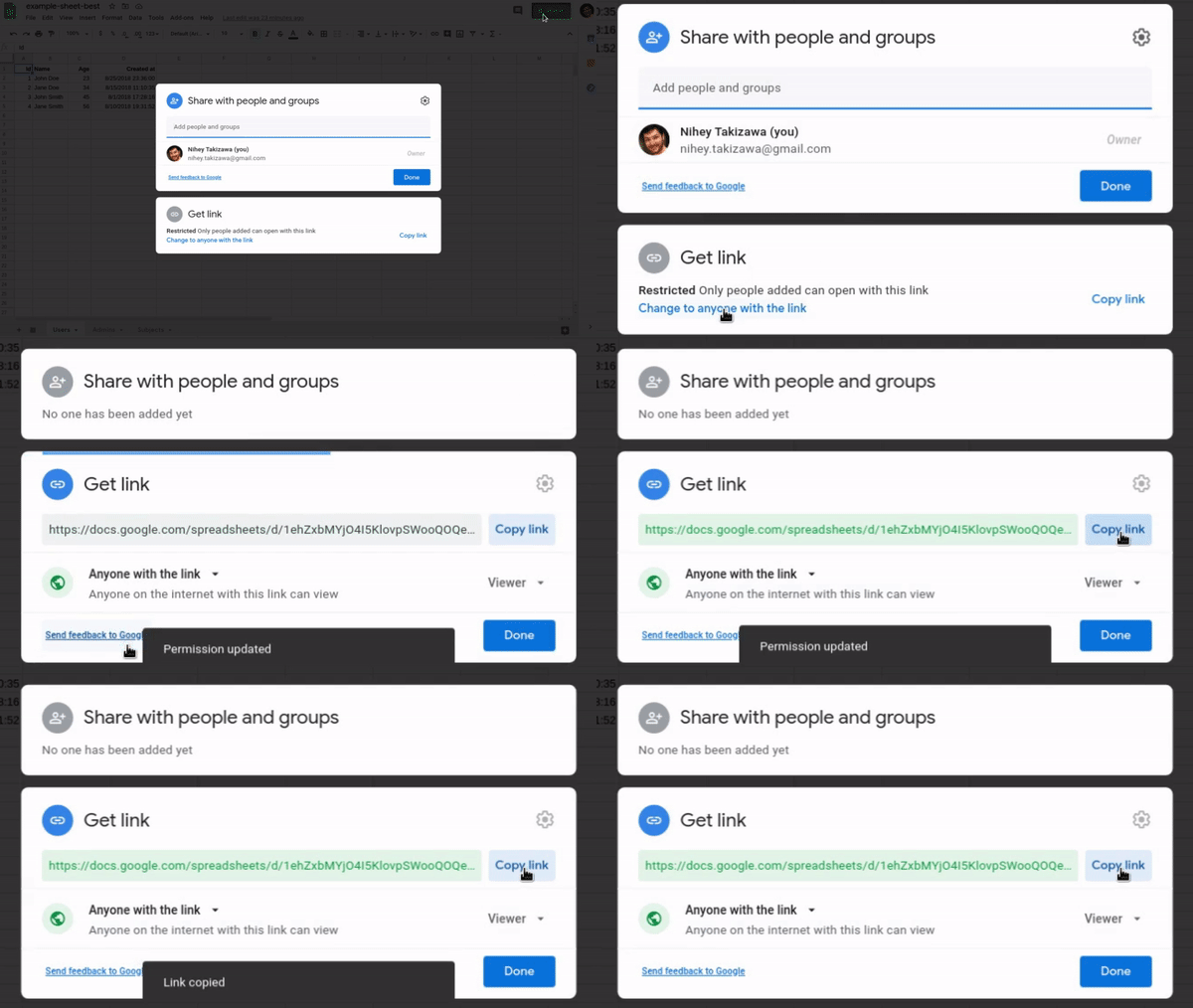
This is enough for GET requests.
Allow writes
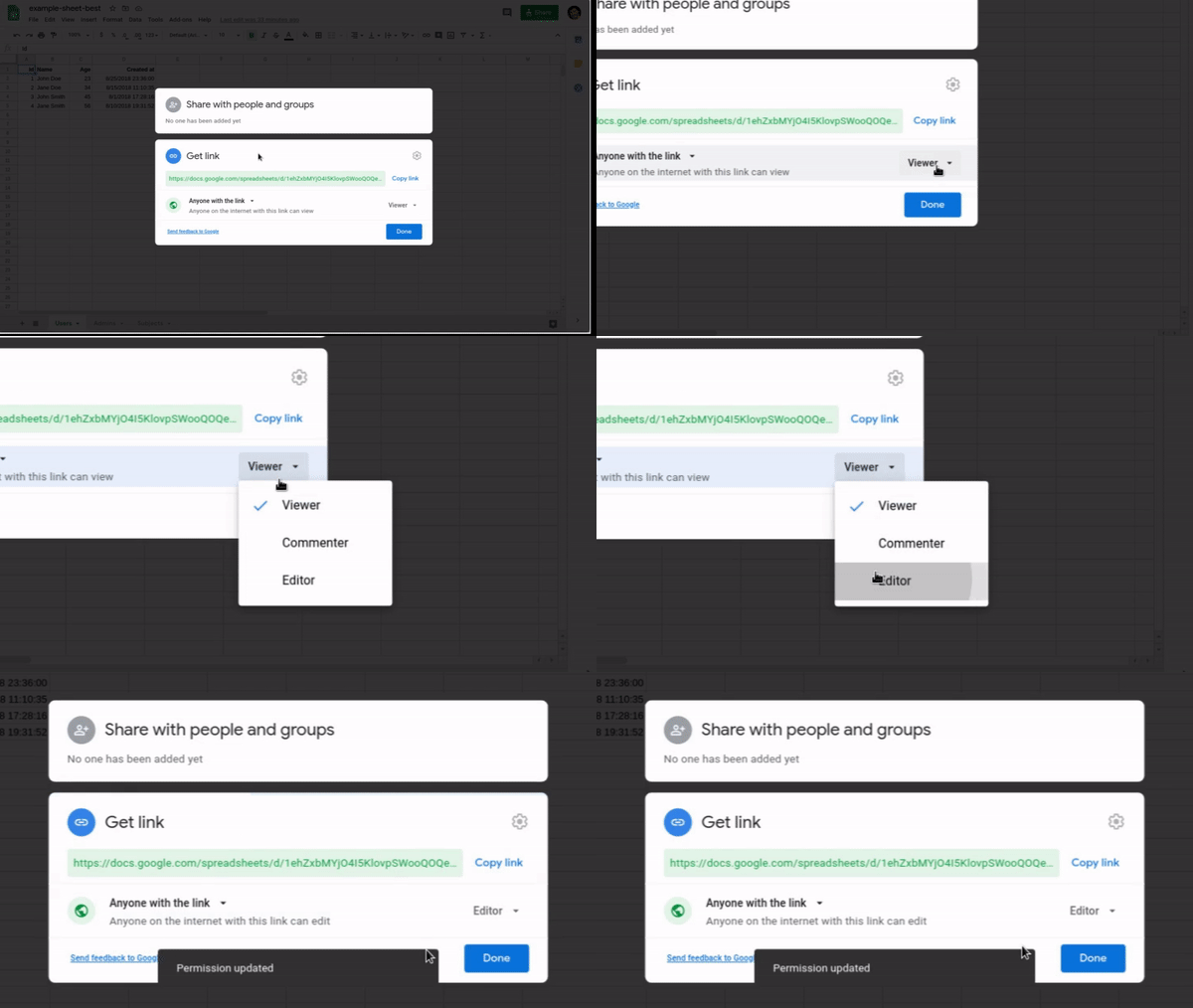
To use POST, PUT, PATCH, or DELETE, grant Editor access on the same dialog.
Keeping the sheet private
If you don't want to share the sheet publicly, use Connect with Drive (beta) or upload the file directly — both are covered in Create a Connection.
Next
- Create a Connection
- Authentication — protect the API with an
X-Api-Key. - Connect an AI assistant — use the same prepared Google Sheet through MCP.