Quick Start
You'll need a Google Sheet and a Sheet Best account — sign in with Google. Or grab a ready-made spreadsheet from templates.sheetbest.com.
1. Prepare your sheet
Sheet Best uses the first row as column headers. Each row below becomes a JSON object keyed by those headers. Numbers, text, dates, and empty cells are all fine.
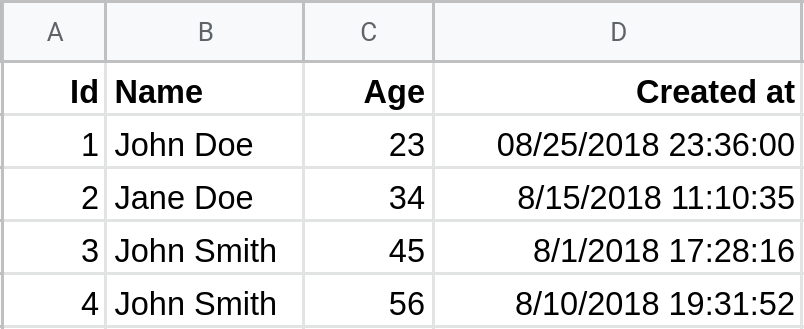
Becomes:
[
  { "Id": "1", "Name": "John Doe",   "Age": "23", "Created at": "8/25/2018 23:36:00" },
  { "Id": "2", "Name": "Jane Doe",   "Age": "34", "Created at": "8/15/2018 11:10:35" },
  { "Id": "3", "Name": "John Smith", "Age": "45", "Created at": "8/1/2018 17:28:16"  },
  { "Id": "4", "Name": "Jane Smith", "Age": "56", "Created at": "8/10/2018 19:31:52" }
]
2. Share the sheet
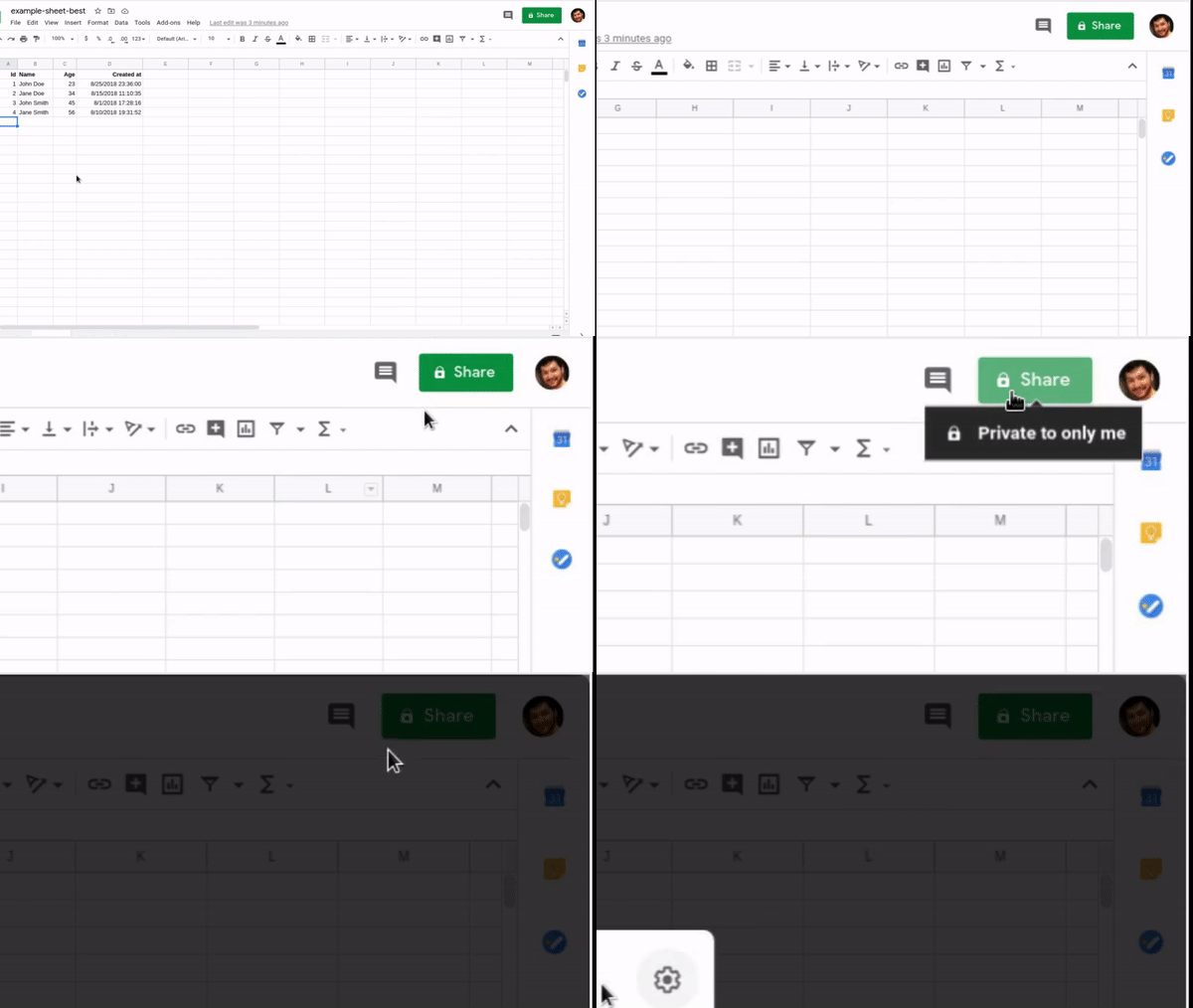
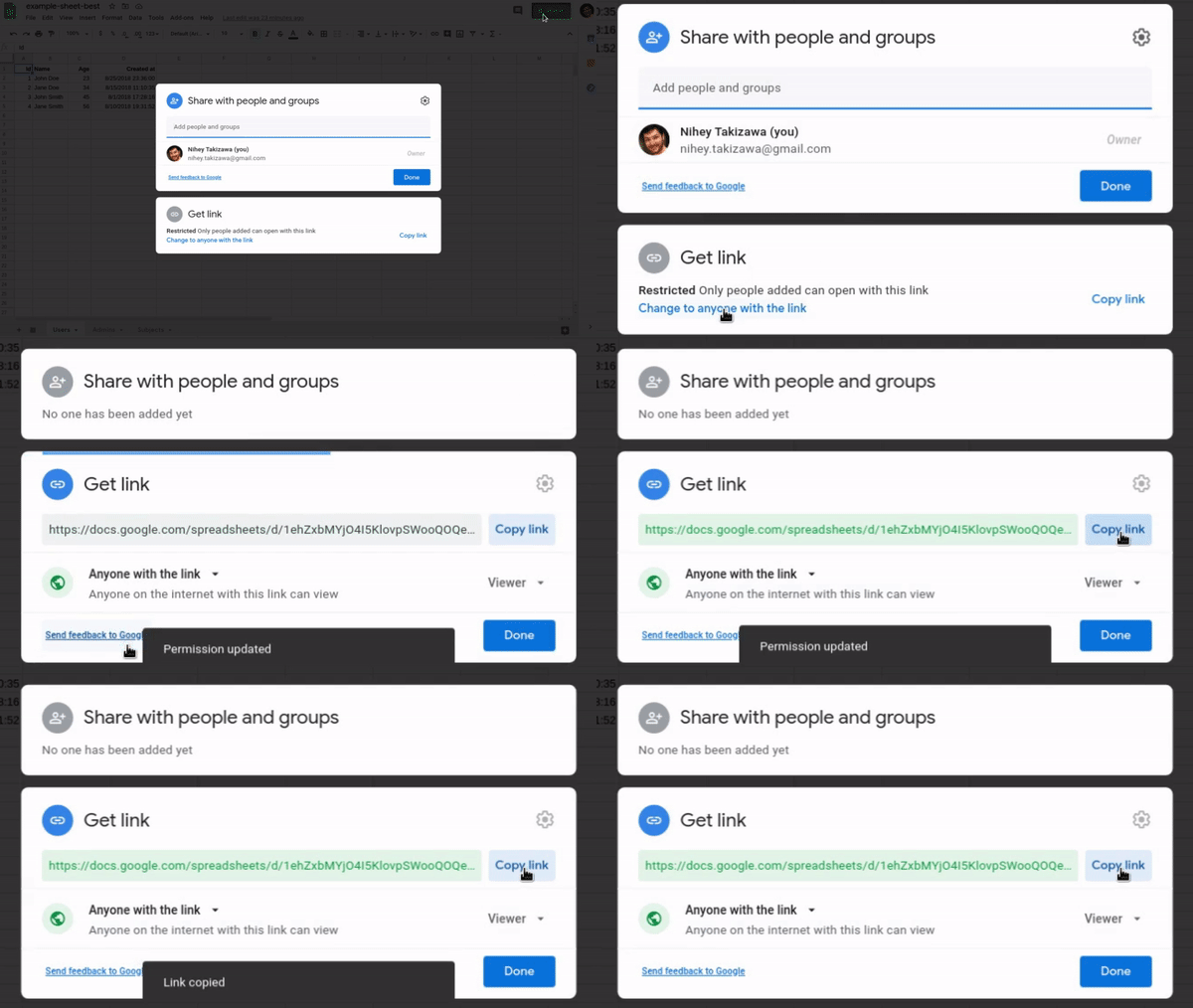
In Google Sheets, click Share and change the link permission to Anyone with the link → Viewer.
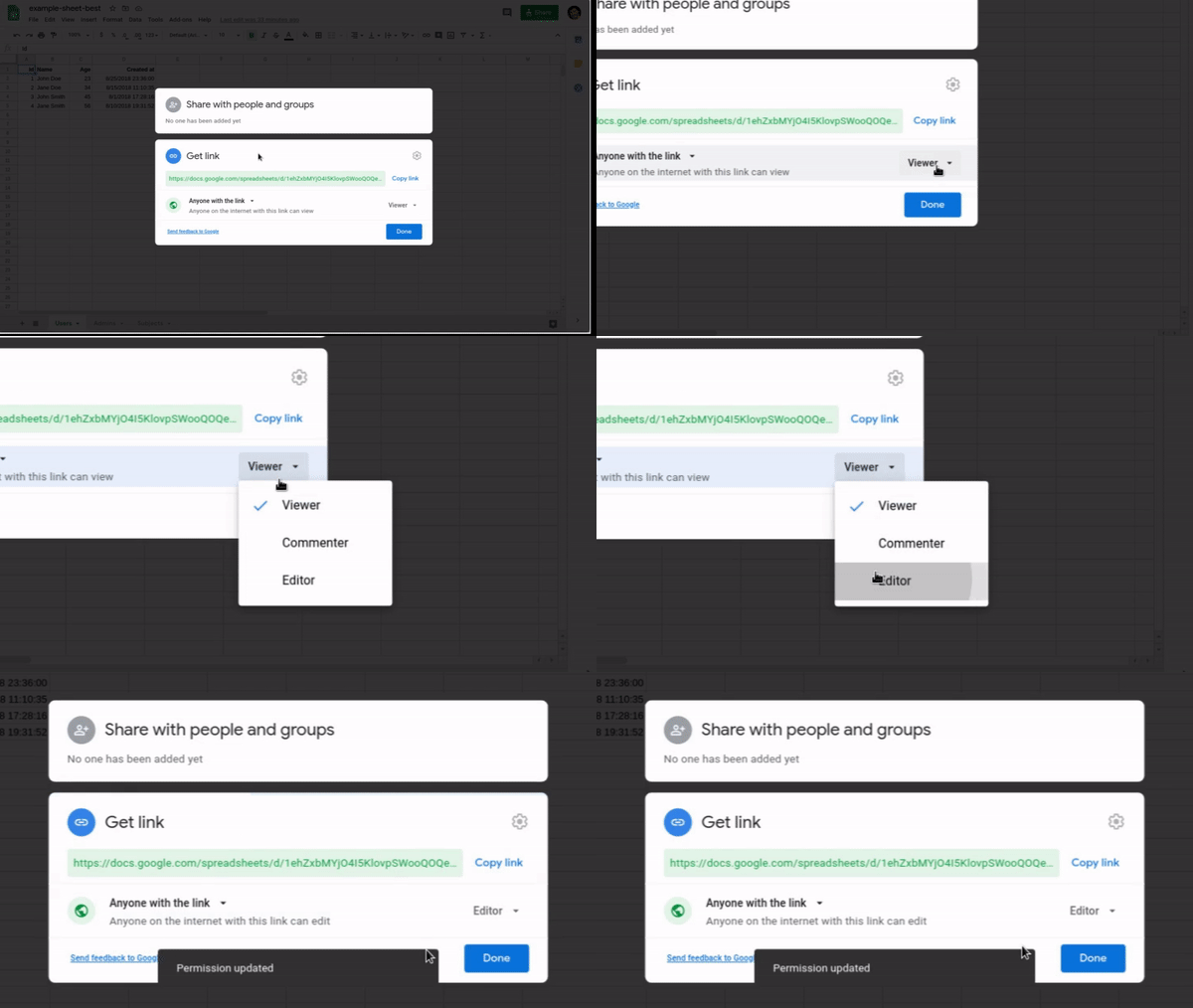
If you want to write to the sheet (POST, PUT, PATCH, DELETE), grant Editor access instead.
If you'd rather keep the sheet private, see Private Sheets.
3. Create the connection
Open the Sheet Best dashboard and click + CONNECTION.
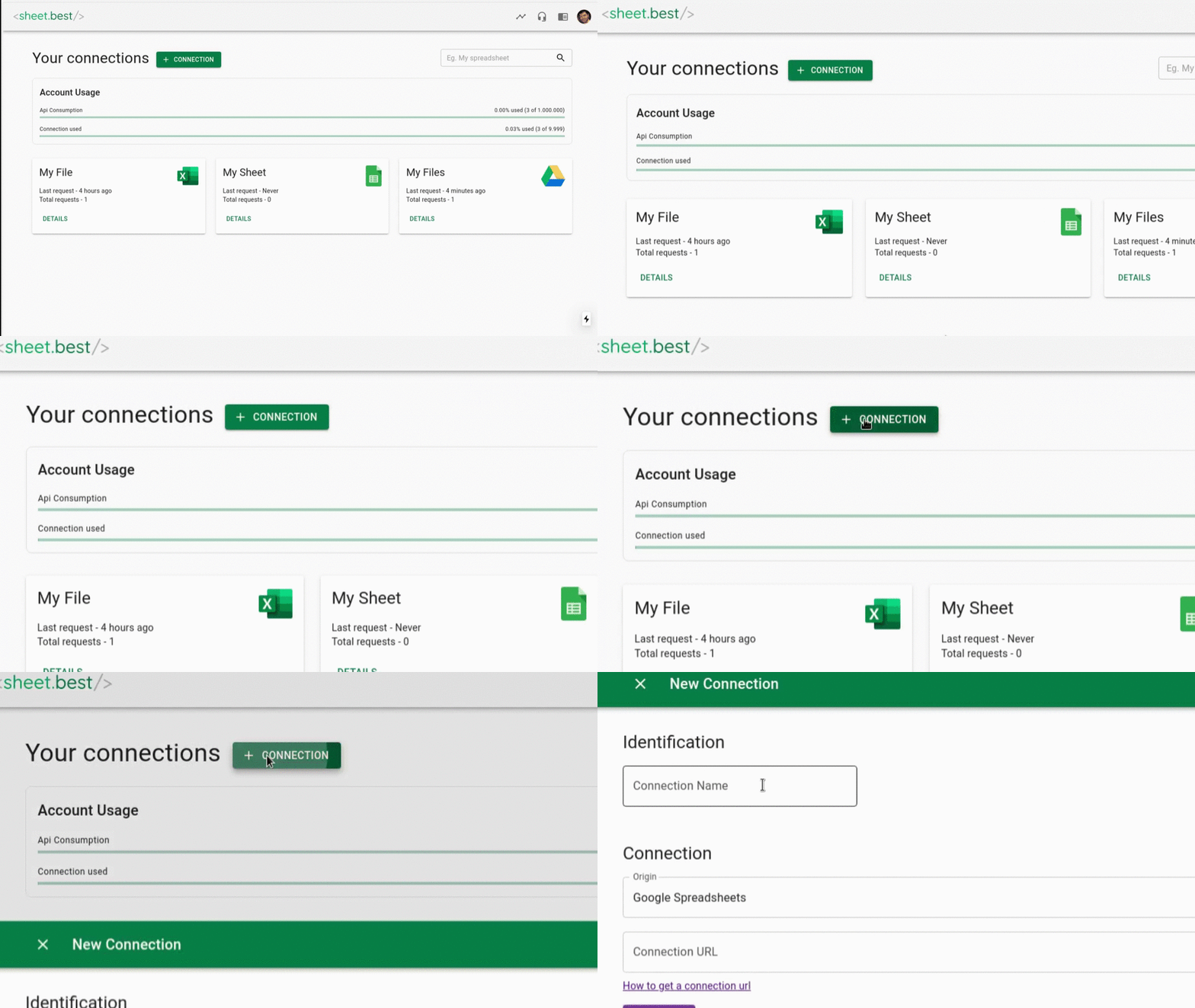
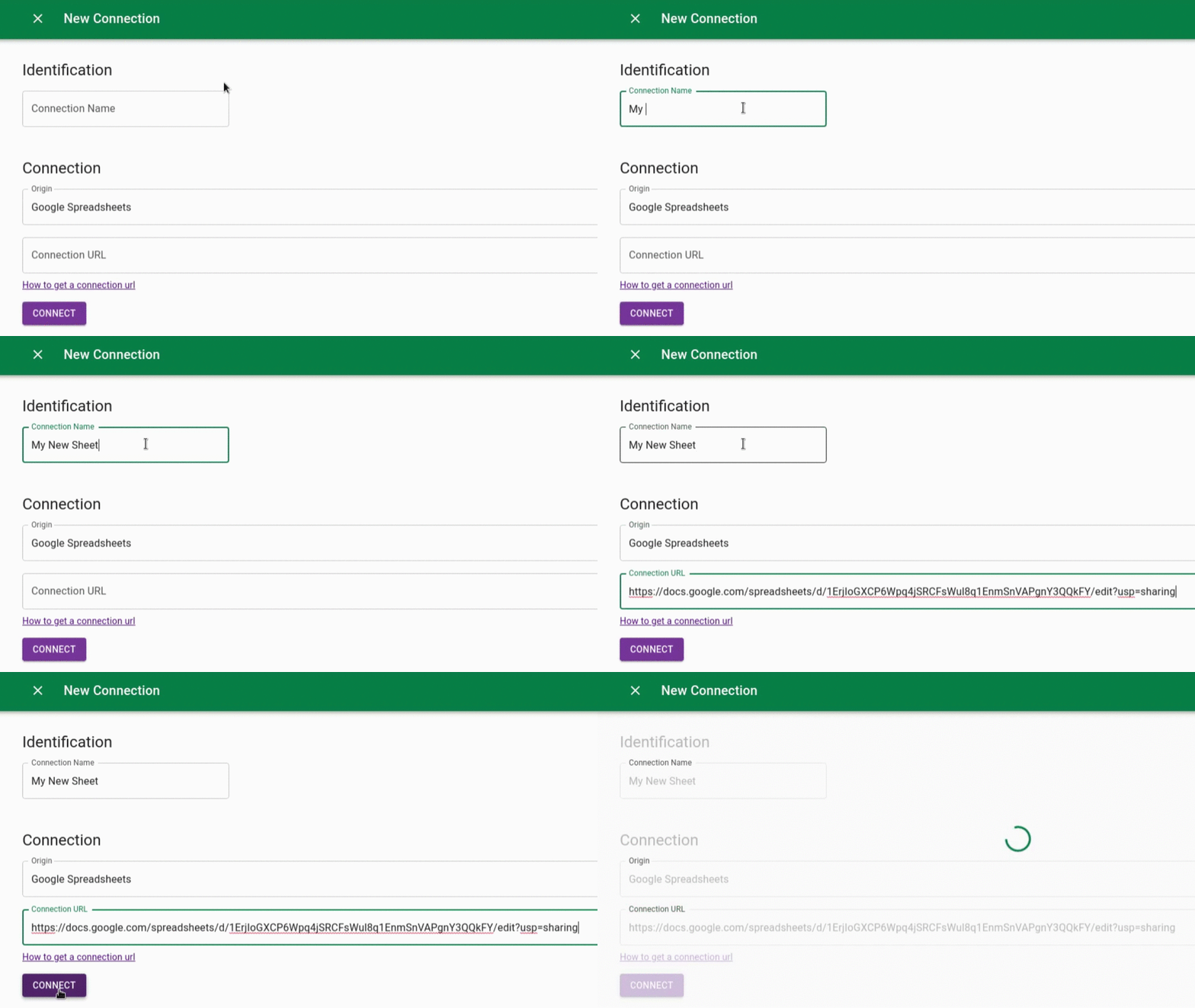
Name the connection, select Google Sheets as the origin, paste the sheet URL, and click CONNECT.
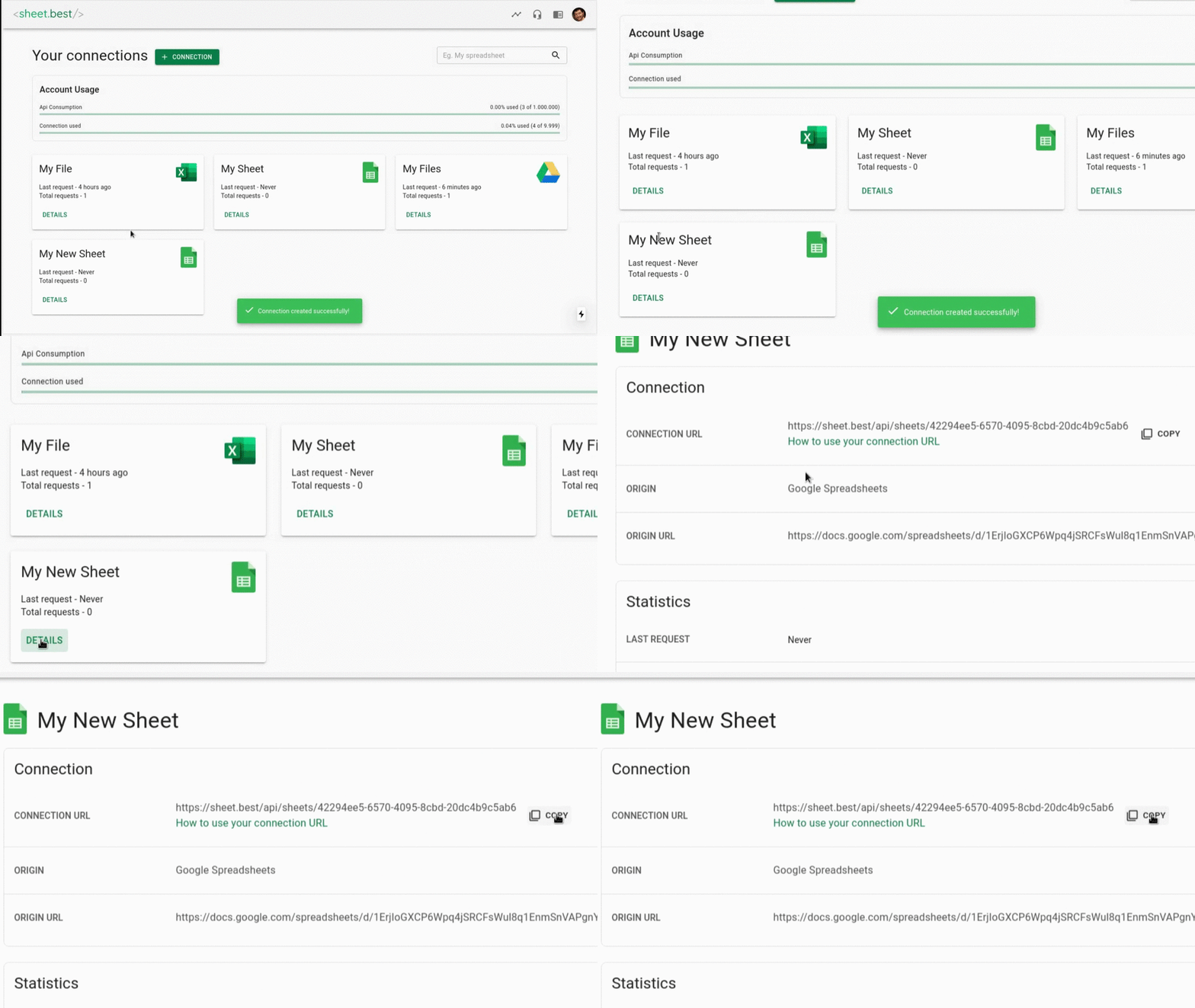
Open DETAILS and copy the Connection URL. It looks like https://api.sheetbest.com/sheets/<id>, where <id> is the part you'll substitute below.
4. Make a request
- cURL
- JavaScript
- Python
curl https://api.sheetbest.com/sheets/YOUR_SHEET_ID
fetch('https://api.sheetbest.com/sheets/YOUR_SHEET_ID')
  .then(response => response.json())
  .then(data => console.log(data));
import requests

response = requests.get('https://api.sheetbest.com/sheets/YOUR_SHEET_ID')
print(response.json())
You should get back the same array of objects shown above.
Next steps
- Read, write, update, delete with the full CRUD methods.
- Filter and query data.
- Protect the API with an
X-Api-Key. - Connect an AI assistant with MCP when you want a compatible client to discover and call Sheet Best tools.