MCP Connections and Tools
Sheet Best has one account endpoint for normal use and an optional direct endpoint for each connection.
Endpoint URLs
| Scope | Deployed URL pattern |
|---|---|
| Account | https://mcp.sheetbest.com/ |
| Direct connection | https://mcp.sheetbest.com/connections/<connection_id> |
Use the account endpoint shown in your profile and the connection URLs returned by Sheet Best. This avoids mixing staging and production environments.
The connection-management tools return two useful links for every connection:
directMcpUrl: optional remote MCP server focused on this connection;apiUrl: use this URL to call the same connection through the Sheet Best REST API.
How connection context works
The account endpoint exposes connection-management tools and all first-release sheet tools. Every sheet-tool call on that endpoint requires:
{
  "connection_id": "YOUR_CONNECTION_UUID"
}
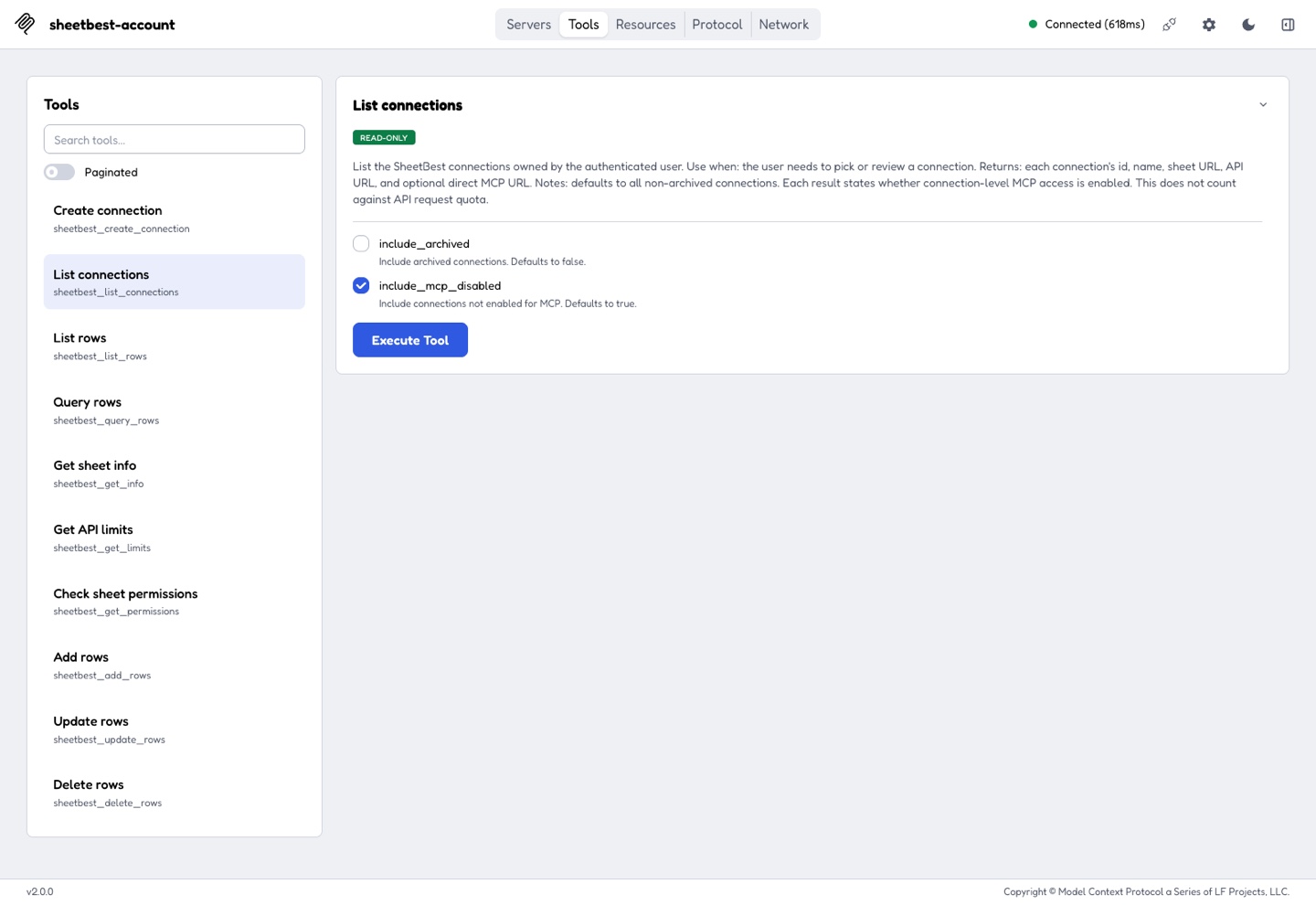
Get the UUID from sheetbest_list_connections. When you use a direct
connection endpoint, omit connection_id; the URL already supplies that
context. The remaining examples show account-endpoint arguments.
Account tools
Account tools manage your connection catalog. They do not consume monthly API requests.
| Tool | What it does |
|---|---|
sheetbest_list_connections | Lists your connections, including status, methods, API URL, and optional direct MCP URL. |
sheetbest_create_connection | Creates a connection from a native Google Sheet URL and returns its API and direct MCP URLs. |
List connections
sheetbest_list_connections accepts:
{
  "include_archived": false,
  "include_mcp_disabled": true
}
Both fields are optional. Archived connections are omitted by default; MCP-disabled connections are included by default so you can understand why an endpoint is unavailable.
Create a connection
Call sheetbest_create_connection with:
{
  "url": "https://docs.google.com/spreadsheets/d/YOUR_TEST_SHEET_ID/edit",
  "name": "Inventory example",
  "mcp_enabled": true
}
Only url is required. name defaults to the sheet title or ID, and
mcp_enabled defaults to true. Creation checks your connection limit, Google
Sheet access, and the header row.
Sheet tools
A direct endpoint advertises only the tools allowed by its connection settings and plan. The account endpoint advertises the complete first-release catalog; calls still enforce the selected connection's methods, plan, Google access, and quota.
| Tool | Requirement | Quota on success | Changes data |
|---|---|---|---|
sheetbest_list_rows | GET enabled | Yes | No |
sheetbest_query_rows | GET enabled | Yes | No |
sheetbest_get_info | GET enabled and a plan with advanced-query access | Yes | No |
sheetbest_get_limits | None | No | No |
sheetbest_get_permissions | None | No | No |
sheetbest_add_rows | POST enabled | Yes | Yes |
sheetbest_update_rows | PATCH or PUT enabled | Yes | Yes |
sheetbest_delete_rows | DELETE enabled | Yes | Yes |
sheetbest_aggregate and sheetbest_pivot are not available through MCP.

Why a tool may be missing
If a tool does not appear in your client's tool list:
- Check Advanced Settings → Methods for the connection.
- Confirm your plan supports the operation.
sheetbest_get_inforequires advanced-query access. - If using a direct endpoint, confirm the connection allows that tool.
- Reconnect or refresh the server so the client requests the latest tool list.
Google edit access affects whether a write succeeds. Allowed methods determine whether the write tool is advertised.
Tabs
Most row tools accept an optional tab argument:
{
  "connection_id": "YOUR_CONNECTION_UUID",
  "tab": "Inventory",
  "limit": 25
}
Omit tab to use the first tab. Use the exact tab title for any other tab.
For related reads and writes to the first tab, either always omit tab or
always pass its name. Those two forms use separate short-lived cache paths.
The same concepts are available through the REST API. See Working with Tabs.
Read and query rows
List rows
sheetbest_list_rows supports pagination, raw values, and column filters:
{
  "connection_id": "YOUR_CONNECTION_UUID",
  "limit": 25,
  "offset": 0,
  "raw": false,
  "search_ci": true,
  "columns": {
    "Status": "Open",
    "Owner": "*Taylor*"
  }
}
limitdefaults to 100 and accepts 1–1000.offsetdefaults to 0 and is zero-based.columnsmatches exact values or*wildcard patterns.search_cimakes column matching case-insensitive.rawrequests native cell values when supported.
The result includes rows, totalRows, totalColumns, limit, and offset.
See the REST guides for filtering and
pagination concepts.
Query rows
sheetbest_query_rows compares column values. Each query value begins with an
operator:
| Operator | Meaning |
|---|---|
__eq | Equal |
__ne | Not equal |
__gt | Greater than |
__gte | Greater than or equal |
__lt | Less than |
__lte | Less than or equal |
{
  "connection_id": "YOUR_CONNECTION_UUID",
  "query": {
    "Age": "__gte18",
    "Status": "__neArchived"
  },
  "limit": 100,
  "offset": 0
}
query is required. All conditions must match. See
Querying Data for the corresponding REST concepts.
Add rows
sheetbest_add_rows accepts one object or a non-empty array. Keys must match
the sheet's headers.
{
  "connection_id": "YOUR_CONNECTION_UUID",
  "data": [
    {
      "Item": "Keyboard",
      "Status": "New"
    },
    {
      "Item": "Mouse",
      "Status": "New"
    }
  ]
}
Review the target connection, tab, and values before approving the call. A successful call counts as one API request.
See Adding Rows for the equivalent REST operation.
Update rows
sheetbest_update_rows requires data and exactly one selector:
index: a zero-based row index or index expression;columns: one or more column matches.
By default, the tool performs a partial update like PATCH:
{
  "connection_id": "YOUR_CONNECTION_UUID",
  "columns": {
    "Item": "Keyboard"
  },
  "data": {
    "Status": "Active"
  },
  "put": false
}
Set put to true to replace matching rows like PUT. A replacement clears
columns that are not supplied:
{
  "connection_id": "YOUR_CONNECTION_UUID",
  "index": "2",
  "data": {
    "Item": "Keyboard",
    "Status": "Archived"
  },
  "put": true
}
Use put: false unless you intend to replace the complete matching row. Confirm
the selector and data before approving either operation.
The connection must allow PATCH for a partial update or PUT for a
replacement. See Updating Rows.
Delete rows
sheetbest_delete_rows also requires exactly one selector:
{
  "connection_id": "YOUR_CONNECTION_UUID",
  "columns": {
    "Status": "Delete me"
  }
}
or:
{
  "connection_id": "YOUR_CONNECTION_UUID",
  "index": "2"
}
The tool deletes every matching row. Ask the assistant to list or count the matches first, then approve deletion only when the selector is correct.
See Deleting Rows for the equivalent REST operation.
Check permissions
sheetbest_get_permissions does not change the sheet or consume quota. It
separates three kinds of access:
{
  "google": {
    "isValid": true,
    "isPrivate": false,
    "isEditable": true,
    "hasHeaders": true
  },
  "sheetbest": {
    "allowedMethods": ["GET", "PATCH", "POST"],
    "mcpEnabled": true
  },
  "effective": {
    "readRows": true,
    "addRows": true,
    "updateRows": true,
    "deleteRows": false
  }
}
googlereports whether the sheet is reachable, private, editable, and has valid headers.sheetbestreports the connection's configured methods and MCP status.effectivereports what the MCP connection can currently do after combining those checks.
If effective access is lower than expected, check MCP troubleshooting.
Check quota
sheetbest_get_limits returns limit, remaining, and plan without
consuming quota. Successful row calls and sheetbest_get_info count once.
Failed preflight or operation calls do not count as successful requests.
Next step
Learn how to protect and manage your MCP token.